Streamlit App
Rocco’s description enhancement tool ships with an interactive web app built on Streamlit. It puts the Evaluator, RAG, and Writer components behind a single browser-based workflow with no coding required.
Launching the App
streamlit run rocco_ui.py
The app opens at http://localhost:8501 by default.
The Interface
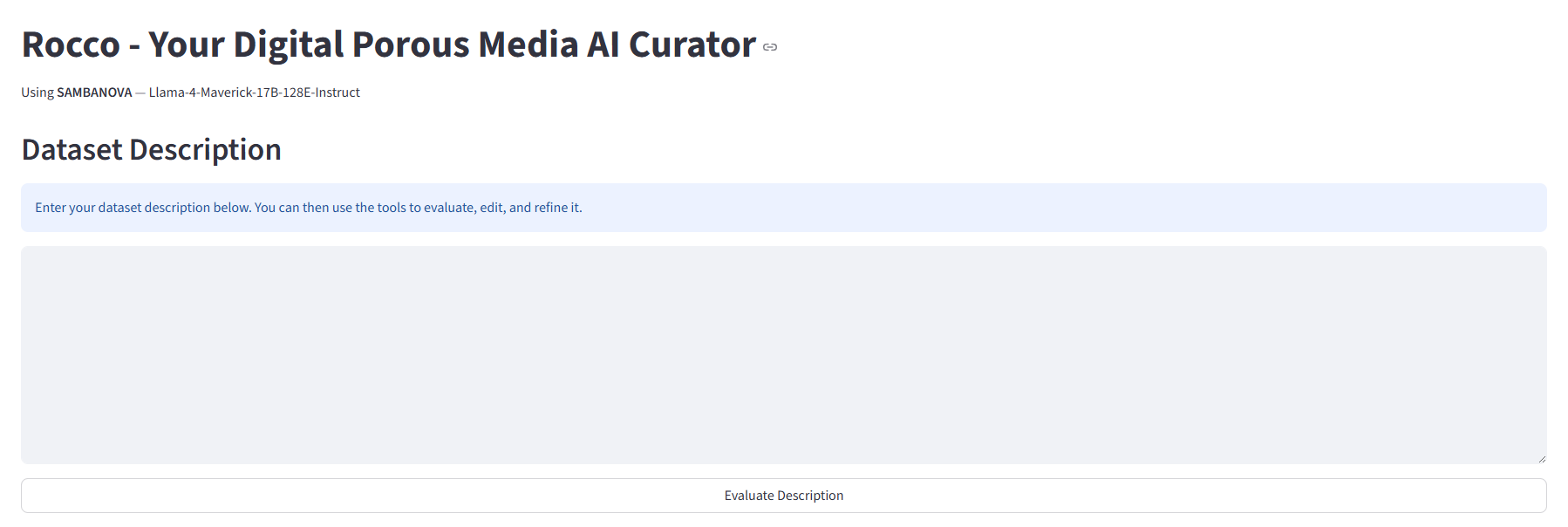
Step-by-Step Workflow
1. Enter a description
Paste your dataset description into the text area.
2. Evaluate
Click “Evaluate Description” to score the description against the 10-criterion rubric. The panel shows:
A total score out of 10
Per-criterion score (out of 1) with a brief explanation of what is missing or well-covered
See Evaluator for a detailed breakdown of each criterion.
3a. Upload context documents
Click “Upload Files” and select one or more PDFs or DOCX files — method papers, technical protocols, or related datasets. Rocco chunks and embeds them into a local FAISS index that persists for the duration of your browser session.
See Document RAG for details on how ingestion and retrieval work.
3b. Write feedback
Type specific feedback in the text area. These can include, but are not limited to:
Sample preparation details
Algorithms, models, simulators, or other computational methods used for image processing and analysis
Measurements from experiment, if available
4. Enhance the description
Click “Enhance with Rocco”. Rocco first screens your feedback (see Writer), then retrieves relevant excerpts from your uploaded documents and produces an improved description.
5. Review results
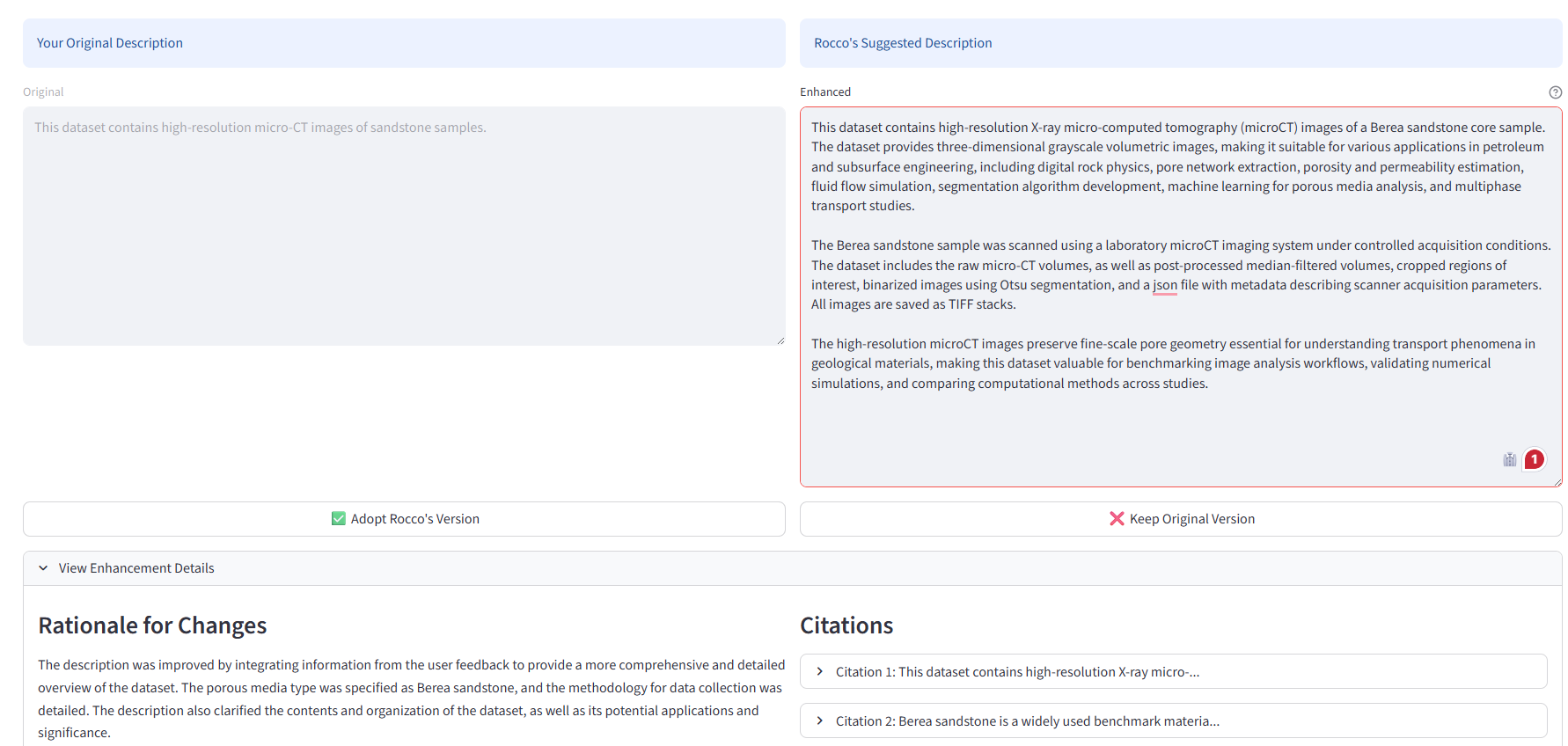
The enhanced description appears alongside:
A rationale overviewing major changes
Citations — each added or modified statement is traced to its source (your feedback, an uploaded paper, or the original description)
You can manually edit the result, accept, or reject any changes, then enhance again.
6. Manage context (optional)
After accepting or rejecting an enhancement and re-evaluating, a “Manage Context (Prior Turns)” expander appears below the evaluation and enhancement columns. Each prior (feedback → result) pair is shown as a card with a checkbox.
For each turn, you can:
Uncheck to exclude it from the next prompt — useful when old constraints are no longer relevant.
Edit the feedback text inline to refine what the model sees. Edits persist within the session.
Review context — each turn shows which document chunks were retrieved (document title, page, and snippet).
Review result — a preview of the enhanced description from that turn.
To wipe the entire enhancement thread and start fresh, click “Clear history” inside the Context Manager.
7. Iterate
Accepting the enhanced description makes it the new starting point for subsequent iterations.
Click “Evaluate Description” to score the enhanced description against the 10-criterion rubric.
If the score is not satisfactory, manage your prior turns in the Context Manager, then click “Enhance with Rocco” again with new feedback.
Reading Citations
Each citation in the result shows:
Field |
Meaning |
|---|---|
|
The specific sentence or clause that was added or changed |
|
Where it came from: |
|
The verbatim excerpt from the source that supports the statement |
|
Filename (without extension) of the uploaded paper, if |
|
Page number in the source PDF, if available |
Always review citations before publishing — the LLM can occasionally attribute a claim to a nearby passage that only loosely supports it.
In-Memory State
The app stores all state in Streamlit’s st.session_state. This means:
State is not persisted to disk — refreshing the browser resets the session
Uploaded documents and the FAISS index are held in memory for the duration of the session
If you need to save and reload a session across browser restarts, use the programmatic
DescriptionEditor.save_session() / load_session() interface described in Writer.
Common Use Cases
Quick evaluation
Paste a description and click “Evaluate” to get immediate rubric feedback without uploading any documents. Useful for a fast sanity check before deeper work.
Full enhancement
Paste the description, evaluate, upload one or two relevant papers, write targeted feedback, and enhance. Good for descriptions intended for publication or archival.
Iterative refinement
Start from a low-scoring draft. Evaluate → enhance → review → evaluate again. Use the Context Manager to selectively include/exclude prior turns and refine feedback.
Troubleshooting
- “Enhancement failed”
Check that
LLM_API_KEYis set correctly in.envand that your API key has sufficient quota. Verify your internet connection, or switch to a local provider (Ollama) in your.env.- “No context found”
Ensure documents were uploaded successfully and are in PDF or DOCX format. Other file types are not supported. Try re-uploading or use a different document.
- “Feedback marked as ‘Reject’”
Rewrite your feedback to be more specific and relevant to the dataset. Avoid vague or off-topic instructions. Try splitting long feedback into multiple shorter, focused suggestions.
See Also
Evaluator — How the rubric scoring works
Document RAG — How document ingestion and retrieval work
Writer — How enhancement and citations work, including session files
Configuration — Switching LLM providers